
B
BRAINBAY

Project Controls · Intelligence · AI

Categories
Primavera P6

Why a Primavera P6 Schedule Update Shows the Wrong Finish Date

Primavera P6

Why a Primavera P6 Schedule Update Shows the Wrong Finish Date

11 August 2026 — Christian Ramos

Planner checking drawings while diagnosing a Primavera P6 finish-date problem
A disciplined schedule review starts with the underlying plan. Photo by Daniel McCullough via Unsplash.

A Primavera P6 wrong finish date is rarely caused by one dramatic error. In most schedule updates, it comes from several small settings working together: an open-ended activity, an incorrect actual date, the wrong calendar, an overlooked constraint, or a remaining duration that no longer reflects the work on site.

I have seen this happen even in schedules that look clean at first glance. The safest approach is to diagnose the network in a fixed order instead of changing dates until the result looks right.

Start with the data date

The data date is the dividing line between completed work and the remaining plan. If it is earlier or later than the reporting cut-off, all forecast dates can shift.

Before reviewing individual activities, confirm:

  • The data date matches the approved reporting cut-off.
  • Actual starts and finishes are not later than the data date.
  • In-progress work is correctly placed around the data date.
  • The correct project is open when you run the schedule calculation.

A one-day data-date error can affect more than one day of the forecast when calendars, lags, or out-of-sequence progress are involved.

Check actual dates carefully

Actual dates should describe what happened, not what was originally planned. A common mistake is entering an Actual Start on the wrong activity or marking an activity complete while its successor is still logically dependent on it.

Look for these warning signs:

  1. Actual Finish entered before Actual Start.
  2. Actual dates after the data date.
  3. Completed activities with remaining duration or units.
  4. In-progress activities with zero remaining duration.
  5. Successors that started before their predecessors without a valid site explanation.

Oracle explains that early and remaining dates are calculated from relationships, constraints, resource availability, and the status of the activity. Its guide to P6 activity dates is a useful reference when two date fields appear to tell different stories.

Review incomplete logic

Open ends are among the most common reasons a schedule update finishes too early. Every normal activity should have a logical path from project start to project completion, except legitimate start and finish milestones.

Run a schedule check and identify:

  • Activities without predecessors.
  • Activities without successors.
  • Dangling starts or finishes.
  • Excessive lags that hide missing work.
  • Relationships connected to the wrong activity.

Do not solve an open end by connecting it to any nearby activity. The relationship must describe how the work will actually be executed.

Verify calendars and working hours

Two activities with the same five-day duration may finish on different dates if their calendars are different. Check the assigned calendar, workweek, holidays, Ramadan or seasonal working hours, and the hours-per-day settings used to display duration.

Pay special attention when an activity was copied from another project. The copied activity may keep a calendar that is not suitable for the current site.

Investigate hard and soft constraints

Constraints can override or restrict network logic. Mandatory Start and Mandatory Finish are especially powerful and should be used only when there is a clear contractual or physical reason.

For each constrained activity, ask:

  • Is the constraint still valid?
  • Is the date supported by a contract requirement or approved instruction?
  • Is the same requirement already represented by logic?
  • Does the constraint create negative float or hide the real driving path?

If a milestone represents a contractual completion date, a Finish On or Before constraint may be appropriate. For ordinary construction activities, logic is normally clearer and easier to defend.

Check remaining duration and percent complete type

The forecast finish is driven by remaining work. If the remaining duration was not updated after actual progress was entered, P6 may forecast a date that is technically correct but operationally unrealistic.

For an in-progress activity, compare:

FieldPractical question
Remaining DurationHow many working days are genuinely needed to finish?
Physical % CompleteHow much measurable scope is complete?
Duration % CompleteIs progress being calculated from time rather than quantity?
Units % CompleteAre actual and remaining resource units reliable?

Do not force the finish date by reducing remaining duration without evidence. Use quantities, productivity, crew deployment, approved access dates, and current site conditions.

Review scheduling options

Out-of-sequence progress can produce different results depending on whether the schedule uses Retained Logic, Progress Override, or Actual Dates. Retained Logic normally keeps incomplete predecessor work controlling its successors, while Progress Override can allow the remaining successor work to continue.

The correct choice depends on the contract, the approved scheduling procedure, and what actually happened on site. Record the selected option in the monthly schedule narrative so reviewers can reproduce the calculation.

Trace the longest path

If the project finish still looks wrong, start at the completion milestone and trace the driving relationships backward. This is often faster than reviewing thousands of activities.

Check whether the path passes through the work that genuinely controls completion. If it jumps through a minor activity, procurement item, or unrelated area, investigate the logic around that point.

How to fix a Primavera P6 wrong finish date

Use this order every month:

  1. Confirm the data date and schedule options.
  2. Run schedule log checks.
  3. Correct invalid actual dates and status.
  4. Review open ends and dangling logic.
  5. Verify calendars and constraints.
  6. Validate remaining durations using site evidence.
  7. Trace the longest path to the completion milestone.
  8. Compare the current forecast with the previous update.
  9. Record every material change in the narrative.

This method protects the schedule from cosmetic fixes. It also gives management a clear explanation when the finish date changes.

Final takeaway

A Primavera P6 wrong finish date is usually a symptom, not the root cause. The goal is not to make the date match an expectation. The goal is to make the schedule accurately reflect actual progress, remaining scope, access, productivity, and network logic.

If you need help reviewing a complex update, learn more about my project controls experience or contact me for a structured schedule health check.

Frequently asked questions

Why does P6 show a finish date later than my manual calculation?

P6 uses activity calendars, relationships, lags, constraints, the data date, and scheduling options. A manual calendar-day calculation often misses one of these factors.

Can I type a finish date directly to correct the schedule?

You should correct the underlying status, duration, calendar, logic, or approved constraint. Typing a date may hide the real cause and make future updates harder to defend.

What should I check first when the project finish suddenly changes?

Compare the current and previous update for data date, actual dates, remaining durations, logic changes, calendars, constraints, and the longest path.
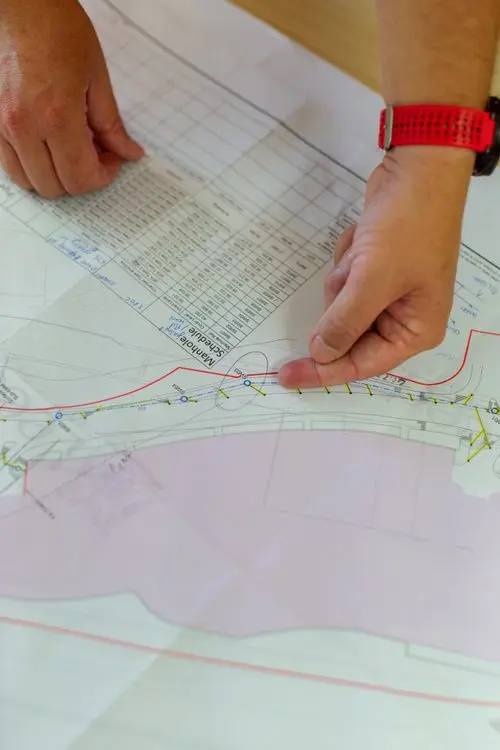

Planning engineer reviewing a Primavera P6 wrong finish date during a schedule update
Categories
Site Planning

How to Prepare a Two-Week Look-Ahead Schedule That Works on Site

Site Planning

How to Prepare a Two-Week Look-Ahead Schedule That Works on Site

11 August 2026 — Christian Ramos

Construction team reviewing near-term work for a two-week look-ahead schedule
A two-week look-ahead is strongest when it is reviewed where the work happens. Photo by RONNAKORN TRIRAGANON via Unsplash.

A two-week look-ahead schedule should help supervisors decide what to do today, not simply repeat a filtered Primavera P6 printout. The best look-ahead plans convert the programme into clear workfronts, quantities, resources, constraints, and named responsibilities.

Site team reviewing a two-week look-ahead schedule during a construction coordination meeting

When the document is practical, it becomes the bridge between the planning team and site execution. When it is too general, it becomes another report that people receive but do not use.

Begin with the latest approved update

The look-ahead must align with the current programme data date, logic, and forecast. Use the latest reviewed update as the source, then reflect any verified site changes that happened after the cut-off.

Do not quietly change contractual milestone dates in the look-ahead. If site conditions require a different sequence, show the operational plan and explain the variance from the programme.

Select work that can actually be performed

Include activities planned during the next 14 days, overdue activities that still require action, and near-term prerequisites.

Before adding an activity, confirm:

  • The workfront is handed over and safe.
  • Approved drawings and method statements are available.
  • Materials are approved, fabricated, and deliverable.
  • Required labor, equipment, access, and permits are available.
  • Preceding work by others is complete.
  • Inspection and testing arrangements are clear.

An activity should not appear as an unconditional commitment when a critical prerequisite is still open. Show the constraint and the responsible party.

Break programme activities into site-level tasks

A programme activity such as “Install stone flooring – Level 1” may cover several areas and weeks. Site teams need smaller packages.

Break it down by:

  • Building, level, zone, room, or elevation.
  • Trade or work type.
  • Daily or weekly quantity.
  • Crew and supervisor.
  • Inspection or handover point.

For example, replace “stone installation” with “Install 120 m² of flooring in Level 1, Zone B, Grid 4–7 using Crew 2.” This makes progress measurable.

Use a clear two-week look-ahead schedule table

A practical two-week look-ahead schedule may include:

FieldWhat to show
Activity IDLink to the approved programme
LocationBuilding, floor, zone, grid, or room
Work descriptionSpecific executable task
Planned datesStart and finish within the 14-day window
QuantityPlanned measurable output
ResourcesCrew, labor, plant, or equipment
PredecessorImmediate prerequisite
ConstraintOpen issue preventing work
Responsible partyPerson or organization that must act
StatusReady, at risk, blocked, in progress, or complete

Keep the table readable on a laptop and printable for site meetings. If too many columns make it difficult to use, move detailed notes to a constraint register.

Set quantities from realistic productivity

Calculate planned output using available workfront, crew size, working hours, and demonstrated productivity.

If one crew installs 20 m² per day and six productive days are available, the maximum theoretical output is 120 m². Then adjust for access, inspection, movement, material handling, and interface work.

Avoid setting a target only because it closes a gap in the programme. A target needs a resource and production basis.

Maintain a live constraint log

Every blocked task should have:

  1. A concise description of the constraint.
  2. The date it was identified.
  3. The date resolution is required.
  4. The responsible party.
  5. The latest action and reference.
  6. The effect if it remains unresolved.

Typical constraints include access, incomplete preceding works, missing approvals, late delivery, design clarification, inspection availability, scaffolding, lifting equipment, and power or lighting.

Review the plan with the people doing the work

The planning engineer should not prepare the look-ahead alone. Confirm it with the construction manager, site engineers, supervisors, procurement team, QA/QC, logistics, and subcontractors.

During the meeting, ask three questions for every major task:

  • Is the area ready?
  • Are the resources and materials available?
  • What could stop this work during the next two weeks?

This short conversation often identifies issues that do not appear in the schedule database.

Measure planned versus completed work

At the next review, do not simply replace the old file. Record what was completed, partially completed, not started, or moved.

Useful indicators include:

  • Activities completed as planned.
  • Planned quantity versus installed quantity.
  • Tasks blocked by unresolved constraints.
  • Commitments carried over to the next period.
  • Reasons for missed targets.

Use the result to improve the next plan. Repeated carry-over is a warning that productivity, access, or planning assumptions are unreliable.

Connect it to weekly and monthly reporting

The look-ahead provides early evidence for the monthly update. Actual dates, quantities, constraints, and photographs should flow into the schedule status and progress narrative.

If you use P6, keep the Activity ID in the look-ahead so records can be traced back to the programme. Oracle’s P6 Professional User Guide is a helpful reference for activity, date, and scheduling concepts.

Common mistakes to avoid

  • Copying the entire monthly programme into Excel.
  • Using descriptions that are too broad for site control.
  • Omitting quantities and resources.
  • Hiding constraints to make the plan look achievable.
  • Assigning every action to “site team.”
  • Ignoring overdue activities.
  • Changing the plan without recording why.
  • Reporting percentages that cannot be verified.

Final takeaway

A two-week look-ahead schedule works when it is specific, measurable, and discussed with the people responsible for delivery. It should expose constraints early, establish realistic commitments, and convert the programme into daily priorities.

Learn more about my planning and reporting work or contact me for help building a practical site-control system.

Frequently asked questions

Why use a two-week period?

Fourteen days is long enough to prepare resources and resolve near-term constraints while remaining close enough for reliable site planning. Some projects use three- or six-week windows depending on procurement and approval cycles.

Should a look-ahead include delayed activities?

Yes. Include overdue tasks that still require action and clearly show their status, reason for delay, and responsible party.

Is the look-ahead a contractual programme?

Normally it is an operational control document derived from the accepted programme. The contract and project procedures determine its formal status.

Categories
Reporting

How to Connect Primavera P6 and Power BI for Better Reporting

Reporting

How to Connect Primavera P6 and Power BI for Better Reporting

11 August 2026 — Christian Ramos

Analytics dashboard illustrating Primavera P6 and Power BI reporting
The reporting layer should turn schedule data into decisions, not just more charts. Photo by Luke Chesser via Unsplash.

A Primavera P6 Power BI dashboard can turn thousands of schedule rows into a clear management view. The value does not come from adding more charts. It comes from creating a reliable data flow, defining each KPI, and making sure the dashboard agrees with the source programme.

Primavera P6 Power BI dashboard displayed beside a construction schedule

This practical workflow covers the connection, data model, measures, visuals, refresh, and quality checks needed for construction reporting.

Choose a Primavera P6 Power BI connection method

The best connection depends on the available access and reporting frequency.

Common options are:

  1. Excel export: Simple and accessible for monthly reporting.
  2. XER or XML transformation: Useful when detailed schedule data must be processed consistently.
  3. P6 database connection: Suitable for controlled enterprise environments with approved read access.
  4. API or integration layer: Best for repeatable automated reporting where supported.
  5. Data warehouse: Useful when P6 must be combined with cost, procurement, document, and site systems.

For many project teams, a controlled Excel export is a good starting point. Automation should come after the definitions and validation are stable.

Export the fields management actually needs

Avoid bringing every P6 column into the model. Start with fields that support the decisions in the report.

Typical schedule fields include:

  • Project ID and project name.
  • WBS code and WBS name.
  • Activity ID and activity name.
  • Activity type and status.
  • Original and remaining duration.
  • Planned, actual, remaining, early, and late dates.
  • Total float and longest-path indicator.
  • Activity and performance percent complete.
  • Calendar.
  • Responsible manager.
  • Activity codes for area, discipline, contractor, and priority.
  • Baseline dates and variances.
  • Budget, actual, remaining, and earned-value fields where approved.

Oracle’s P6 activity-date reference is useful when deciding which date field belongs in a KPI.

Create a clean export process

Use the same layout, filters, field order, and file naming convention every reporting period. Include the data date in the file and in the dataset.

A simple folder structure might be:

  • Current export.
  • Previous approved exports.
  • Baseline export.
  • Mapping tables.
  • Validation results.

Do not overwrite the only copy of a previous period. Historical snapshots are essential for trend and movement analysis.

Transform the data in Power Query

Power Query should perform repeatable cleaning steps, not manual fixes that disappear next month.

Typical transformations include:

  • Setting correct data types.
  • Removing blank or duplicate rows.
  • Standardizing activity-status values.
  • Splitting WBS or activity-code structures.
  • Mapping area and contractor names.
  • Creating reporting periods and date tables.
  • Appending monthly snapshots.
  • Flagging invalid or missing dates.

Microsoft’s Power BI data connection documentation explains supported sources, gateways, and refresh concepts.

Build a simple star schema

Avoid one massive table if the dashboard combines schedules, progress, and reference data. A practical model may contain:

  • FactActivities: one row per activity per snapshot.
  • DimDate: calendar and reporting periods.
  • DimProject: project and programme information.
  • DimWBS: WBS hierarchy.
  • DimCode: area, discipline, contractor, or priority mappings.
  • FactProgress: quantity or earned-value records where needed.

Use stable keys. Activity ID alone may not be unique across several projects, so combine it with Project ID when necessary.

Define KPIs before designing visuals

Write each measure in plain English first. Examples include:

  • Current forecast finish.
  • Variance from baseline finish.
  • Activities started and completed this period.
  • Critical or near-critical activities.
  • Milestones due in the next 30, 60, and 90 days.
  • Delayed activities by responsible party.
  • Planned versus actual progress.
  • Schedule performance index, where the earned-value basis is approved.
  • Open ends, constraints, or negative float.
  • Movement from the previous update.

For every KPI, state the source field, formula, filters, cut-off date, and owner.

Design the dashboard around decisions

A useful management page can include:

  1. Project data date and update status.
  2. Overall planned and actual progress.
  3. Forecast completion and variance.
  4. Key milestones.
  5. Critical and near-critical work.
  6. Area or discipline performance.
  7. Main delay drivers and required actions.
  8. Trend from previous reporting periods.

Use detailed tables for investigation and simple charts for comparison. Avoid decorative gauges that make small differences look dramatic.

Validate every refresh

Before sharing the report, reconcile it with P6.

Check:

  • Activity count by project.
  • Data date.
  • Project and milestone finish dates.
  • Number of completed and in-progress activities.
  • Minimum and maximum dates.
  • Critical activity count.
  • Planned and actual progress totals.
  • Budget, earned value, and variance totals.
  • Missing or unmapped activity codes.

If one key figure differs, stop and identify the reason. A visually polished dashboard is not useful when management cannot trust the numbers.

Plan the refresh and ownership

For manual reporting, assign one person to place the approved export in the controlled folder and one person to validate the refreshed report.

For automated reporting, document credentials, gateway ownership, refresh timing, failure alerts, and the fallback process. Microsoft’s overview of Power BI data refresh explains the main refresh dependencies and options.

Keep the report analytics-friendly

Use descriptive internal and external links, clear calls to action, and stable page URLs when the dashboard is embedded or linked from a website. Google Analytics 4 can automatically measure eligible outbound-link clicks through enhanced measurement; Google provides a guide to measuring outbound clicks.

Do not place confidential project data, personal information, or credentials in a public embedded report. Apply workspace permissions and row-level security where required.

Common mistakes

  • Exporting different columns every month.
  • Mixing planned, baseline, and remaining dates.
  • Using Activity ID as a global key across projects.
  • Calculating percentages from unapproved weights.
  • Hiding the data date.
  • Building visuals before defining KPIs.
  • Refreshing data without reconciliation.
  • Publishing confidential schedule details publicly.

Final takeaway

A Primavera P6 Power BI solution should make schedule information easier to trust and act on. Start with a controlled export, a clean model, clearly defined KPIs, and a repeatable validation process. Automation is valuable only after those foundations are stable.

Learn more about my Power BI and project controls work or contact me to discuss a reporting dashboard for your project.

Frequently asked questions

Can Power BI connect directly to Primavera P6?

Yes, depending on the P6 environment, permissions, database, API, or integration tools available. Many teams begin with controlled Excel exports because they are easier to govern.

What is the most important field to show on a schedule dashboard?

Always show the project data date. Without it, users cannot tell how current the forecast and progress values are.

How often should the dashboard refresh?

Refresh after the schedule has been properly statused, calculated, checked, and approved for the reporting cycle. A faster refresh is not automatically a better refresh.